How-to guide · Chromebook
How to highlight a PDF on Chromebook.
Highlighting is most useful when it stays attached to the document and is easy to find later. Easy Reader is a local-first PDF highlighter Chrome extension for marking text, adding context, and returning to the same passage without uploading the file.
The five-minute workflow
Highlight the idea, not just the page.
Chrome and Chromebook can display PDFs well, but a long reading session needs a dependable way to mark a sentence and find it again. Easy Reader keeps the selection, color, document, and reading position together.
- 01Install the extensionOpen Easy Reader from the Chrome Web Store and pin it if you want quick access.
- 02Open a PDFChoose a local file or open a public HTTPS PDF through the extension.
- 03Select the passageDrag across the sentence or paragraph that carries the idea you want to remember.
- 04Choose a highlight colorUse one of four colors to create a text highlight without leaving the reading flow.
- 05Add context when you shareTurn the highlight and surrounding text into a portrait quote image when the idea is worth sending.
When text selection is not enough
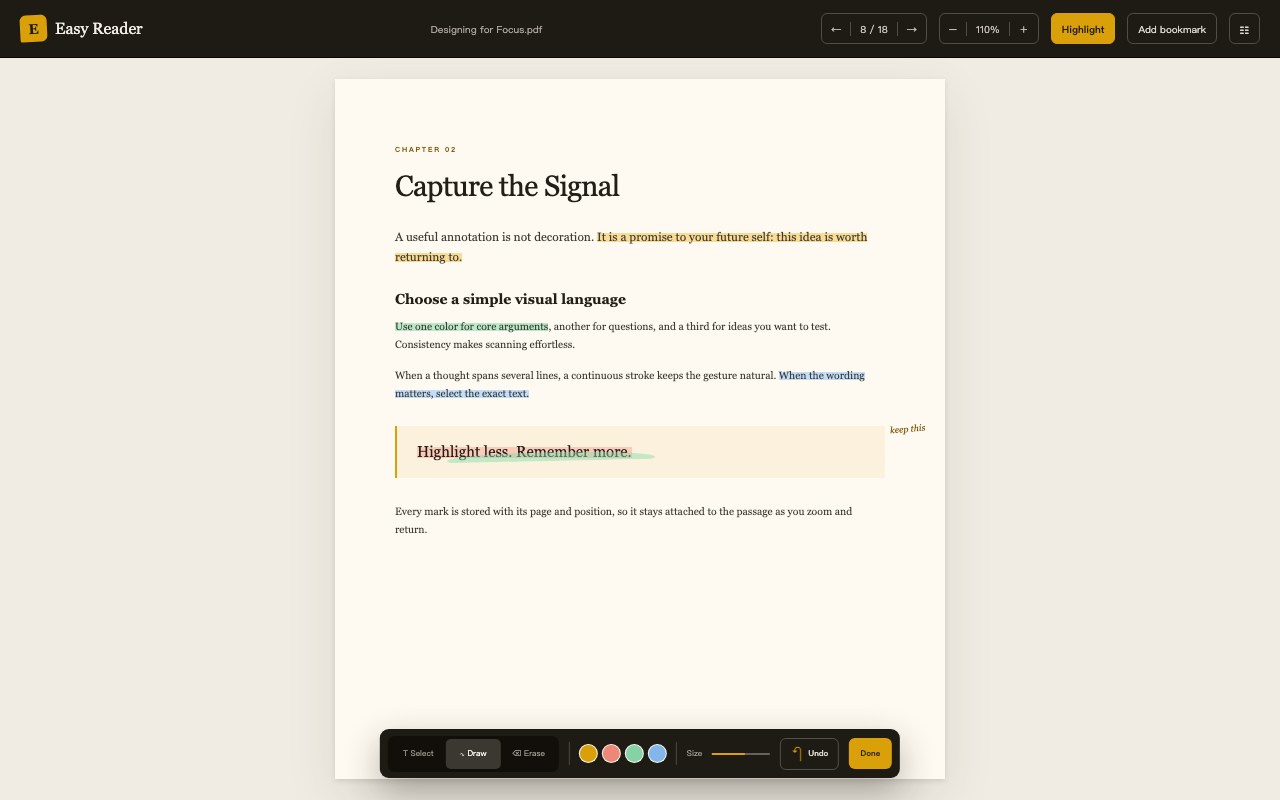
Mark diagrams, margins, and the thought between two lines.
Use the continuous pen for a quick handwritten note or visual mark. You can erase by position and undo the entire highlight in one step, so experimentation does not make the document feel permanent.

Highlighting FAQ
Keep the useful part.
Can I highlight a local PDF on Chromebook?
Yes. Select a local PDF in Easy Reader and create highlights in the browser. The document and its annotations remain local to the extension.
Can I undo a highlight?
Yes. Easy Reader supports one-step undo for a highlight, plus position-based erasing for pen marks.
Can I share the highlighted quote?
Yes. Generate a portrait quote card with adjustable context, page detail, and the document name.
Make your next highlight easy to find.
Install Easy Reader and keep the sentence, the context, and your reading position together.
Get Easy Reader for Chrome