How-to guide · Chrome
How to annotate a PDF in Chrome.
A useful annotation system should help you think without turning the page into a noisy workspace. Easy Reader combines text highlights, a continuous pen, named bookmarks, and automatic reading progress in one local-first reader.
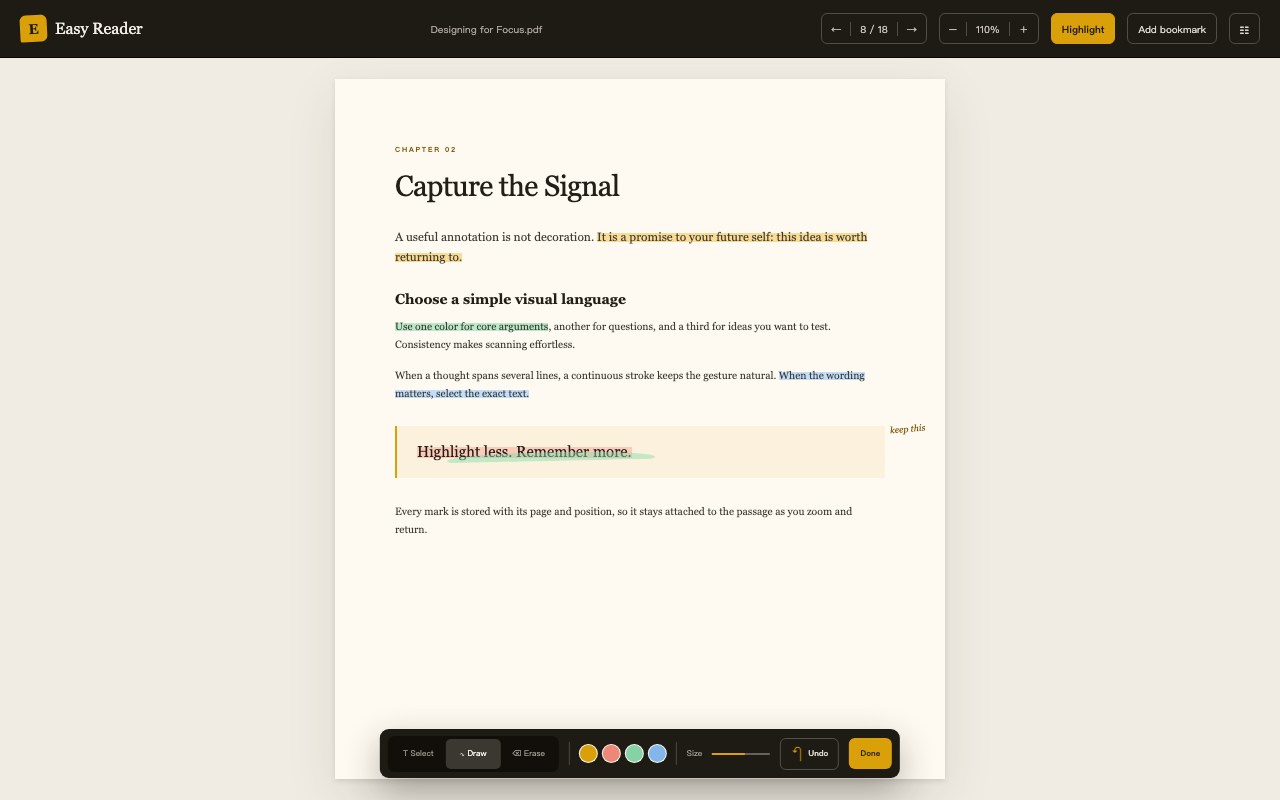
A repeatable annotation loop
Annotate in layers, then return with context.
Start with the smallest mark that helps: a sentence highlight, a quick pen stroke, or a named bookmark. Because the document outline and reading position remain available, you can move from one idea to the next without losing the larger argument.
- 01Open the documentUse a local PDF or a public HTTPS PDF in Easy Reader.
- 02Highlight the evidenceSelect the exact sentence or paragraph that supports your idea.
- 03Add a visual noteUse the continuous pen for a diagram, margin mark, or quick connection.
- 04Name the return pointCreate a bookmark with a useful label such as “method,” “quote,” or “follow up.”
- 05Resume without rebuilding your setupEasy Reader restores the page, in-page position, and zoom level in this browser.
Built around long documents
A PDF outline should help you think.
Use the original chapter hierarchy to move through a paper, report, or ebook. Expand nested sections, resize the outline, and keep your annotation tools close to the page instead of switching between separate apps.


Annotation FAQ
Choose the mark that fits the thought.
What can I annotate in Easy Reader?
You can highlight text, draw with a continuous pen, add named bookmarks, and generate shareable images from highlights.
Are annotations stored online?
No. PDFs, annotations, bookmarks, and reading progress remain in the browser. The website privacy policy explains the local-first model.
Can I use Easy Reader for research papers?
Yes. The outline navigation, precise reading position, and named bookmarks are designed for long papers, reports, and ebooks.
Give every useful idea a place to land.
Easy Reader is now available on the Chrome Web Store for focused PDF annotation.
Get Easy Reader for Chrome